

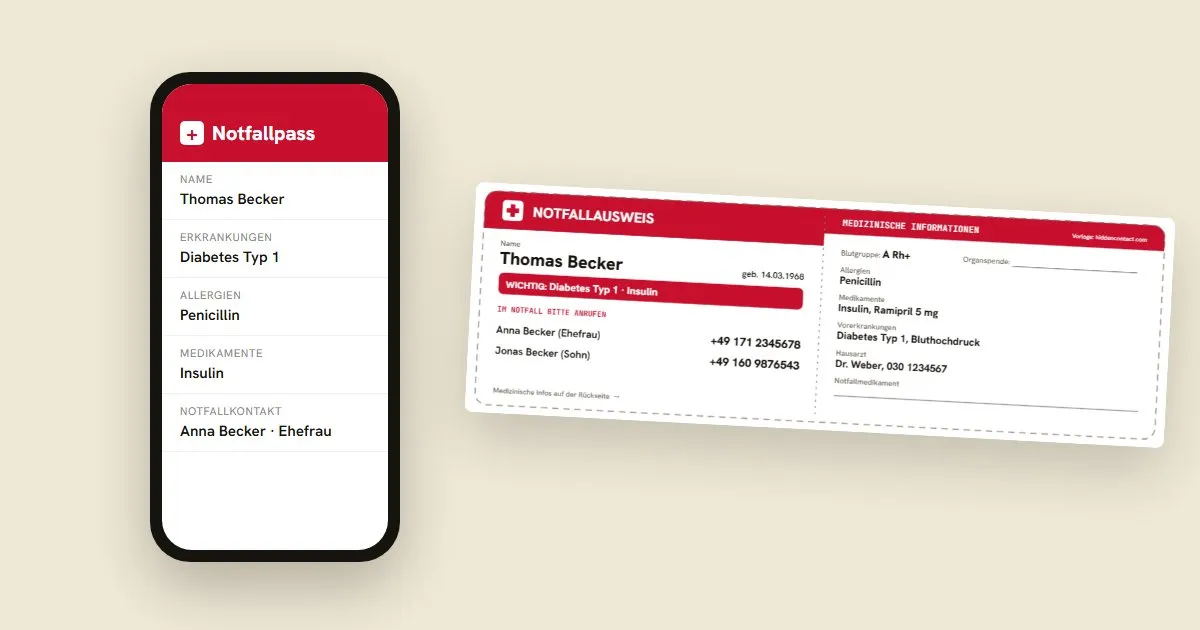
Almost everyone has their phone on them, including when something suddenly goes wrong. That's why iPhone and Android both have built-in emergency information: emergency contacts, allergies and conditions that helpers can see even when the screen is locked. Setting it up takes five minutes. Here's the guide for all common devices, and an honest look at where Medical ID reaches its limits.
iPhone: Health app → profile picture → Medical ID → turn on “Show When Locked”. Android and Samsung: Settings → Safety & emergency → medical information and emergency contacts. Because helpers don't always think of the phone and batteries run flat, a printable medical alert card for your wallet is worth having too.
Setting up Medical ID on iPhone
- Open the Health app.
- Tap your profile picture in the top right and choose Medical ID.
- Tap Edit or Get Started.
- Enter your date of birth, conditions, allergies, medication and blood type. Leave out anything you're not sure about.
- Under Emergency Contacts, add at least one person from your contacts and choose the relationship.
- Turn on Show When Locked. Without it, helpers see nothing on a locked iPhone.
- Tap Done to save.
How helpers open it: on the lock screen, tap Emergency and then Medical ID in the bottom left. On newer iPhones, pressing and holding the side button and a volume button also brings up the Medical ID slider.
Setting up emergency information on Android
On Android, menu names vary slightly by manufacturer and version. The route is similar everywhere, though, and searching the settings for “emergency” finds it reliably.
Google Pixel and devices with stock Android
- Open Settings.
- Choose Safety & emergency.
- Under Medical information, enter your blood type, allergies, medication and notes.
- Add people under Emergency contacts.
- Check that the information is allowed on the lock screen.
Samsung Galaxy
- Open Settings.
- Choose Safety and emergency.
- Tap Medical info and fill it in.
- Add Emergency contacts.
- Turn on the option to show it on the lock screen.
How helpers open it: swipe up on the lock screen, tap Emergency call and open the emergency or medical information. On some devices you have to tap the entry twice.
Lock your phone and try to open your Medical ID the way a stranger would. If it takes more than a few seconds, you'll see why a second route makes sense.
What to put in your Medical ID
- Emergency contacts: two people who will actually answer the phone.
- Conditions: such as diabetes, epilepsy, heart conditions or asthma.
- Allergies: especially to medicines like penicillin, but also insect stings or nuts.
- Medication: particularly blood thinners and insulin.
- Blood type: if you know it.
A more detailed list, including for children, older people and medical conditions, is in our article What to put on a medical alert card.
Where Medical ID on your phone reaches its limits
Medical ID is a good thing and costs nothing. But it has a few weak spots worth knowing about:
- Flat battery or broken screen: then Medical ID can't be reached.
- Helpers don't think of it: not every first aider knows Medical ID exists or how to open it on someone else's phone.
- No phone on you: when running, swimming, or for children without a phone, there simply is no Medical ID.
- Wrong phone: if you use a work phone and a personal phone, you have to keep both up to date.
The better combination: phone plus something people can see
Medical ID is most reliable alongside a second, visible route. The simplest one costs nothing: a credit-card-sized emergency card that sits in your wallet next to your ID and health insurance card. With our medical alert card generator you fill it in online and print it as a PDF, no sign-up needed.
If you want something sturdier or often go out without a wallet, for example for sport, a visible emergency profile on your body or directly on your phone is the way to go:
A QR code on your watch, wristband or phone case. Helpers scan it with any smartphone, without an app, and see the emergency information you've chosen to share, or call your saved contacts directly. You manage the details online and can change them at any time. It even works when your own phone is flat or locked.

Emergency profile on your watch or wristband
SOS Watch Strap | QR Emergency Profile
€11.90

For phone cases, helmets and bikes
3x SOS Stickers | QR Emergency Profile
€11.90
For children without a phone there's a dedicated emergency bracelet for children. You'll find all options in our SOS emergency products.
Frequently asked questions
Where do I find Medical ID on iPhone?
In the Health app: tap your profile picture in the top right, then Medical ID. You can also find it in Settings under Health. On the lock screen, helpers reach it via Emergency and then Medical ID.
Where do I find emergency information on Android?
Depending on the manufacturer and version, in Settings under Safety & emergency, Emergency information or Medical information. The quickest way is to use the search in Settings.
Can helpers see Medical ID when the phone is locked?
Yes, if you've turned on the lock screen option. On iPhone this is called Show When Locked. Without it, Medical ID stays locked.
Do paramedics check Medical ID on the phone?
Sometimes, but not reliably. Every minute counts in an emergency, and not every first aider knows where to find it. An emergency card in your wallet or a visible emergency bracelet is a sensible addition.
What should I put in Medical ID?
Emergency contacts, conditions, allergies, medication and, if known, your blood type. A detailed list is in our article on what to put on a medical alert card.
Does Medical ID on the phone cost anything?
No. Medical ID on iPhone and emergency information on Android are built into the operating system and free. You don't need an extra app.


